
If you want to connect GitHub to Vercel, deploy a website, and use your own domain, the process is straightforward. Vercel’s Git integration can automatically deploy connected GitHub repositories, while its domain tools let you connect and manage a custom domain
This step-by-step guide explains how to connect GitHub to Vercel, configure your project, deploy your website, add a custom domain, configure DNS, and check the most important settings before going live.
Quick Answer: How Do You Connect GitHub to Vercel?
To connect GitHub to Vercel, sign in to Vercel, select Add New → Project, choose GitHub, authorize access if requested, select your repository, confirm the framework and build settings, and click Deploy. Vercel can then create deployments from pushes to the connected repository.
1. What You Need Before Starting
You need:
- A GitHub account
- A GitHub repository containing your website code
- A Vercel account
- A domain name, if you want to use a custom web address
- A project that can successfully build using its required framework and dependencies
For example, your project might look like:
my-website/
├── package.json
├── index.html
├── src/
│   ├── main.tsx
│   └── ...
├── public/
└── vite.config.ts
The exact files depend on whether you’re using Vite, React, Next.js, or another framework.
2. Push Your Website to GitHub
If your project is already on GitHub, you can skip this section.
If the project is on your computer, open the project folder in your terminal.
Initialize Git:
git initAdd the project files:
git add .Create your first commit:
git commit -m "Initial project"Create a new repository on GitHub, then connect your local project to it:
git remote add origin https://github.com/YOUR-USERNAME/YOUR-REPOSITORY.gitRename the branch to main:
git branch -M mainPush the project:
git push -u origin mainYour source code should now be available inside the GitHub repository. Before moving to Vercel, make sure the project builds successfully locally with the correct production command.
3. Connect GitHub to Vercel
Go to Vercel and sign in.
From the Vercel dashboard:
Add New → Project
Vercel allows you to import a project directly from a Git provider such as GitHub.
If this is your first time connecting GitHub, Vercel will ask you to authorize access to your GitHub account or the relevant organization.
Choose the GitHub repository containing your website.
For example:
GitHub
└── YOUR-USERNAME
    └── my-website
Click Import. Vercel’s current Git integration supports automatic deployments for connected Git repositories, including GitHub.
4. Configure the Vercel Project
Vercel will inspect the repository and attempt to identify the framework automatically.
Depending on your project, you may see settings such as:
- Project Name
- Framework Preset
- Root Directory
- Build Command
- Output Directory
- Install Command
- Environment Variables
For many projects, Vercel automatically detects the framework and provides sensible build defaults.
Example for a Vite project
You might have:
Framework Preset: Vite
Build Command: npm run build
Output Directory: dist
Install Command: npm install
Example for a Next.js project
You might have:
Framework Preset: Next.js
Build Command: next build
Output Directory: .next
Do not change these settings unnecessarily. Use the settings appropriate for your project’s actual framework.
5. Deploy the Website
Once the settings are correct, click:
Deploy
Vercel will:
- Download the repository.
- Install the dependencies.
- Run the build command.
- Generate the production build.
- Deploy the resulting application.
- Give you a Vercel URL.
For example:
https://my-website.vercel.appVercel provides production deployments as well as preview deployments for branches and pull requests, making it possible to review changes before they reach the live site.
6. What Happens When You Update GitHub?
This is one of the biggest advantages of connecting GitHub to Vercel.
After the repository is connected, you normally don’t need to manually upload your website every time you make a change.
For example:
git add .
git commit -m "Update homepage"
git push
The push triggers a new Vercel deployment.
The workflow becomes:
Edit Website
      ↓
Git Commit
      ↓
Git Push
      ↓
GitHub
      ↓
Vercel detects change
      ↓
Vercel builds project
      ↓
Vercel deploys website
Vercel’s Git integration is specifically designed for automatic deployments from connected repositories.
7. Add a Custom Domain to Vercel
Once the project is successfully deployed, you can connect your own domain.
For example, instead of:
my-website.vercel.appyou could use:
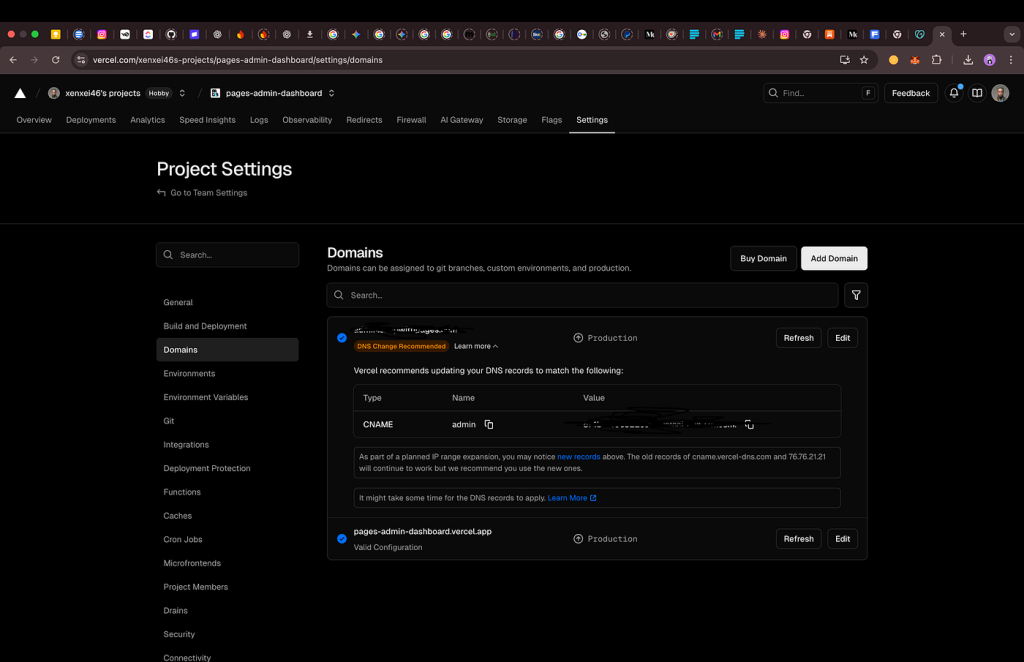
www.mywebsite.comGo to your Vercel project. Adding a custom domain to Vercel is handled from the project’s domain settings. Vercel’s documentation supports adding, verifying, and managing custom domains for projects.
Then open:
Settings → Domains
Enter your domain name and add it.
Vercel will show you the DNS records that need to be configured for your domain. Use the records Vercel provides for your specific project rather than copying DNS values from an unrelated tutorial.
8. Configure Your Domain’s DNS for Vercel
If your domain was purchased from a different registrar or hosting provider, configure the required DNS records through that provider unless you have delegated DNS management to Vercel.
Vercel will tell you exactly which records are required.
A common setup may look similar to:
Type       Name       Value
A          @          [Vercel-provided IP]
CNAME      www        [Vercel-provided hostname]
Important: Don’t blindly copy DNS values from another website or tutorial. Use the values Vercel displays for your particular domain and project.
Vercel provides DNS management and domain configuration tools for this purpose.
9. Verify Your Custom Domain
After adding the DNS records, return to Vercel.
Vercel will check whether the domain is correctly pointing to the project.
DNS changes can take some time to propagate.
Once verification is complete, your domain should point to your Vercel project. Vercel provides domain and DNS tools for checking and managing this configuration.
You should then be able to access your website through:
https://yourdomain.comand, if configured:
https://www.yourdomain.com10. Set the Main Domain
If you have both:
yourdomain.comand
www.yourdomain.comyou can configure one as the primary domain and redirect the other.
For example:
yourdomain.com
        ↓
Main website

www.yourdomain.com
        ↓
Redirects to yourdomain.com
This gives visitors one consistent URL.
11. HTTPS and SSL for Your Vercel Domain
You do not normally need to manually purchase an SSL certificate for a Vercel-hosted website.
Once the domain is correctly configured, Vercel handles the HTTPS side of the deployment.
Your website can therefore be accessed securely using:
https://yourdomain.comIf HTTPS does not become active, check the domain configuration and DNS records in Vercel. Vercel provides troubleshooting guidance for SSL and domain configuration issues.
12. Configure Environment Variables
Some applications require secrets or configuration values such as:
DATABASE_URL
API_KEY
SUPABASE_URL
SUPABASE_ANON_KEY
Do not put private API keys directly into your GitHub repository.
Instead, add them through:
Vercel → Project → Settings → Environment Variables
Vercel allows variables to be scoped to environments such as Production, Preview, and Development.
After changing environment variables, you generally need to redeploy for the changes to take effect.
13. Recommended GitHub to Vercel Deployment Workflow
Once everything is configured, your workflow becomes extremely simple:
                 ┌──────────────┐
                 │   Developer  │
                 └──────┬───────┘
                        │
                        ▼
                 ┌──────────────┐
                 │    GitHub    │
                 └──────┬───────┘
                        │
                   Git Push
                        │
                        ▼
                 ┌──────────────┐
                 │    Vercel    │
                 └──────┬───────┘
                        │
                     Build
                        │
                        ▼
                 ┌──────────────┐
                 │  Deployment  │
                 └──────┬───────┘
                        │
                        ▼
              https://yourdomain.com
This means GitHub becomes the source of your code, while Vercel handles building and hosting the application.
14. Common GitHub, Vercel, and Domain Problems
“My GitHub repository isn’t showing”
Check that you have authorized Vercel to access the GitHub account or organization containing the repository.
If necessary, review your GitHub/Vercel integration permissions.
“The deployment failed”
Open the deployment in Vercel and check the Build Logs.
Common causes include:
- Incorrect build command
- Missing dependencies
- Incorrect Node.js version
- Missing environment variables
- Incorrect output directory
- TypeScript errors
- Invalid configuration files
“My domain isn’t working”
Check:
- The domain was added to the correct Vercel project.
- The DNS records match what Vercel requested.
- There are no conflicting DNS records.
- DNS changes have had enough time to propagate.
- Vercel shows the domain as verified.
“The website works locally but fails on Vercel”
This usually means the production environment differs from your local environment.
Check:
npm install
npm run build
If the build fails locally, fix that before deploying.
Also check your environment variables and Node.js version.
Final Deployment Checklist
Before considering the deployment complete:
- Website code is pushed to GitHub
- GitHub repository is connected to Vercel
- Correct framework is selected
- Correct build command is configured
- Correct output directory is configured
npm run buildsucceeds- Vercel deployment succeeds
- Vercel
.vercel.appURL works - Custom domain is added
- DNS records are configured
- Domain is verified
- HTTPS works
- Environment variables are configured
- A new GitHub commit successfully triggers a deployment
Once these are complete, you have a proper GitHub → Vercel → Custom Domain deployment pipeline. Future changes can be pushed to GitHub and automatically deployed by Vercel, while preview deployments can help you review changes before production.